
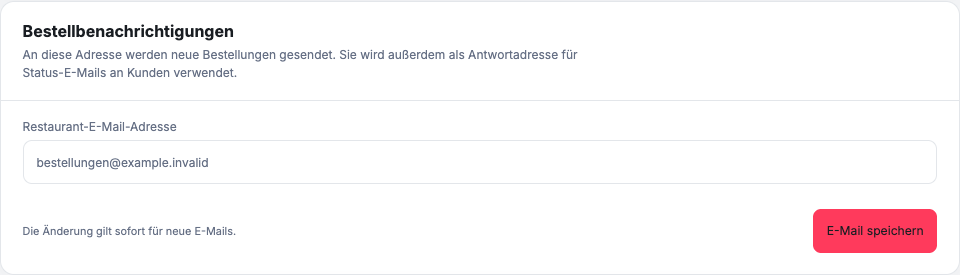
Where do you change the address for order emails?
- Open Settings in the sidebar.
- Scroll to Order notifications.
- Check the field Restaurant email address and enter the designated mailbox.
- Click on Save email.
This change applies immediately to new emails and does not require the menu to be published. The address also serves as a reply address for status emails to guests. It is not automatically the address you use to log in to the dashboard.
Which messages are sent?
GastroSprint uses email notifications to communicate incoming orders and important status decisions. The restaurant receives information about the new order. The guest receives a confirmation of receipt and is informed of acceptance or rejection.
The order information in the protected dashboard remains the definitive working view for your team. An email can arrive late, end up in a filter, or be missed on a single device.
What do you check if an email is missing?
- First open the dashboard and check if the order is there.
- Check spam, advertising and other filter folders in the designated mailbox.
- Check that the correct restaurant mailbox is being used.
- Search by sender, order number or restaurant name.
- Report order number and approximate time of receipt to GastroSprint Support if the message is still missing.
Do not send passwords, one-time codes, or full payment information to support. For the technical check, the restaurant name, order number, time and type of missing message are usually sufficient.
Does email replace the dashboard?
No. During ordering times, a responsible person should actively monitor new orders in the dashboard. Email is an additional notification and not a reliable replacement for the operational order view.