
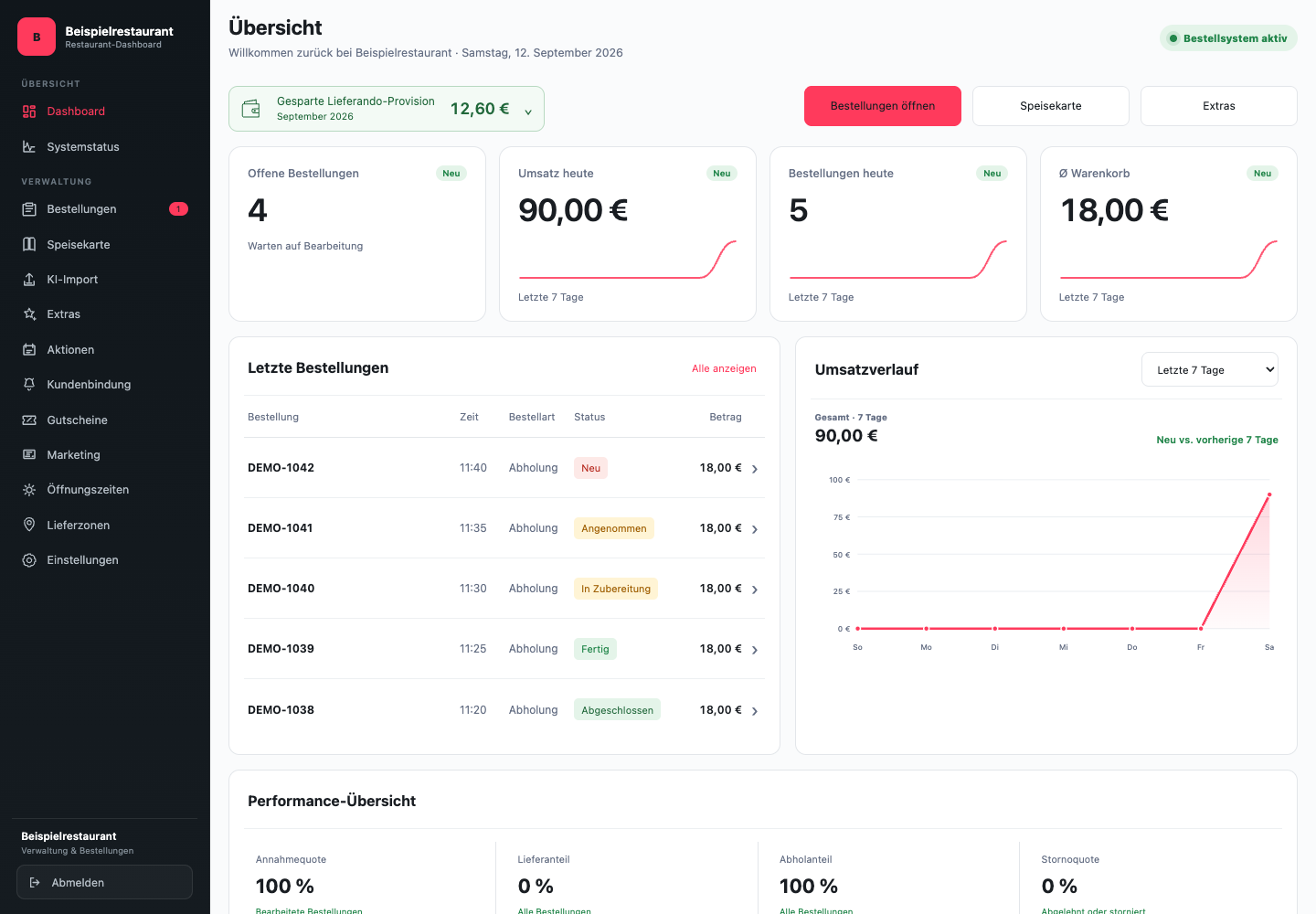
How do you find your way around the current dashboard?
The dark sidebar on the left leads to the workspaces. Dashboard opens the overview with open orders, sales and the last orders. System status shows accessibility and technical configuration. On narrow screens, you open navigation using the menu button.
Under Administration you find Orders, Menu, AI import, Extras, Actions, Customer loyalty, Vouchers, Marketing, Opening hours, Delivery zones and Settings. Which additional functions you can use depends on the activation of your restaurant. Opening hours and delivery zones have their own menu items; The address for order emails is under Settings.
What areas are there in the dashboard?
The dashboard separates ongoing ordering operations from maintaining the online ordering website. This allows your team to process orders without accidentally releasing unpublished menu changes.
The most important areas are:
- Orders: Accept, reject and process new and ongoing orders
- Menu: Maintain categories, dishes, prices, descriptions, images and availability
- AI import: Capture content from an existing JPG, PNG, or PDF menu as a draft
- Extras: Manage extra groups, selection rules and assignments to dishes; You can check the sizes directly at the dish
- Opening hours: determine available order times and pre-orders
- Delivery zones: Maintain radius, minimum order value, delivery costs, delivery time and excluded postcodes
How do you work safely with changes?
Changes to the menu or settings are prepared in a controlled manner. After editing, always check whether the new version is still available as a draft or is already public. The visible online ordering website should only be changed once prices, products and rules have been fully checked.
A saved change does not have to automatically appear in the public online ordering website. Be sure to check the publishing status before announcing a change to guests.
What belongs in the daily routine?
Open the area first during ordering times Orders and keep an eye on new orders. Menu or delivery zone changes should, if possible, be prepared outside of peak times and reviewed by a responsible person.
During shift changes, it should be clear who monitors new orders, sets realistic processing times and coordinates queries with the kitchen or delivery department.