
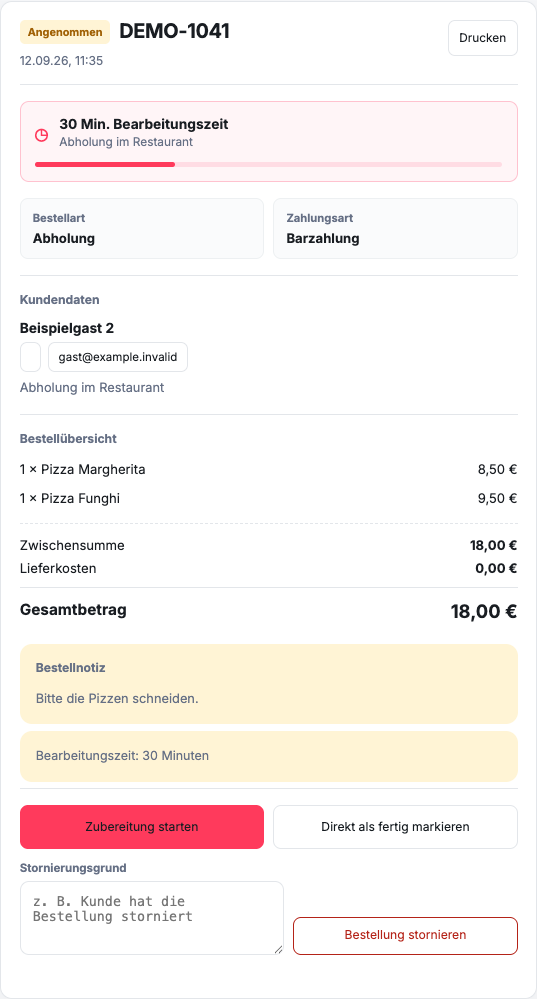
How do you change the status in the current view?
Open Orders and select the order. The details contain the actions that match the current status:
- Assumed: Start preparation or Mark immediately as finished.
- In preparation: Order is ready.
- Done: Complete order.
For an order controlled via Kitchen Basic, you can instead Edit in Expo appear. Then continue the kitchen work in this view. Saved marks an order for later; check their appointment before accepting it.
Which statuses does GastroSprint use?
GastroSprint maps the operational process with clear order status. The confirmed order includes New, Accepted, In preparation, Done and Completed. Saved is added for orders to be carried out later. Rejected and Canceled mark orders that have been completed separately.
- New: The order has been received and requires a decision.
- Assumed: The restaurant has confirmed the execution and set a processing time.
- In preparation: The kitchen or team is actively working on the order.
- Done: The order is ready for pickup or delivery.
- Completed: Collection or delivery is finished and no further action is necessary within the team.
When do you change status?
Update the status when the corresponding step has actually been achieved. Don't set an order to "Done" as a precaution while products are still missing or need to be packed.
Upon delivery, “Done” can indicate the completed cooking and packing step. “Completed” only follows when your restaurant has operationally completed the order.
How do you avoid double editing?
Decide who makes status changes per shift. If several employees see the same order, not everyone should coordinate acceptance, kitchen and delivery at the same time. A consistently maintained status is the common working basis.
If orders remain open for an unusually long time, first check the actual status of the team. Don't complete an order just because it's been on the list for a while.