
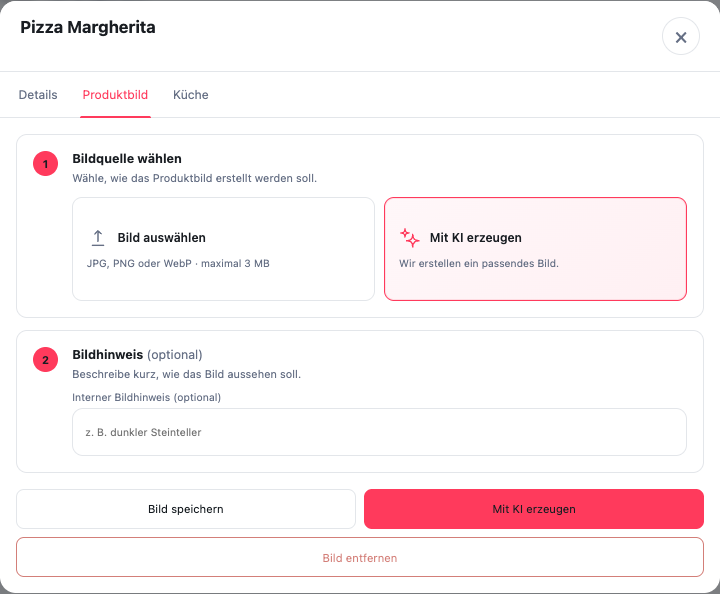
Where do you change image and availability?
Open Menu and click on the dish. In the tab Details you will find the switch below Court available. When the dish is sold out, turn it off and click Save.
For a photo you switch to Product image. Use Select image, check the preview and click Save image. The upload supports JPG, PNG and WebP up to 3 MB. Generate with AI is a separate option. A generated suggestion is only made with Accept image taken over.
Then publish the reviewed draft to make the change effective for guests.
How do you treat a sold-out dish?
Change the availability status as soon as a dish cannot be reliably offered temporarily. Don't rush to remove it from the menu if you want it to be available again later.
Availability should be checked again before the next order phase begins. An internally known “Sold out today” does not help the guest if the product can still be selected in the online ordering website.
What makes a suitable product image?
Use a picture that actually matches the dish described. Don't cut off important components and avoid displayed prices or promotional information that may later become outdated.
When uploading you should check:
- The picture shows the correct dish.
- Brightness and cropping also work on the smartphone.
- No people, addresses or internal information are visible.
- The presentation does not promise any supplements that are not part of the product.
AI-generated product images are an optional, paid GastroSprint additional service. Such images must also clearly depict the dish on offer and be approved before publication.
When will the change become visible?
Image and availability changes are part of the controlled publishing process. Check the draft status and then the public order store. If a dish is sold out, it is particularly important that it can no longer be ordered and that the guest does not see a contradictory ad.